A Design Checklist to Eliminate Package Printing Mistakes (Outline Text, Embed Images?)
Hello, this is Packative. In packaging production, 'design file proofreading' is a more important step than you might think. If the file settings are not correct, deadlines can be delayed and printing errors can easily occur. We’ve put together a design checklist to reduce printing mistakes and shorten production time. If you’re wondering how to prepare your package design files...
Hello, this is Packative.
In packaging production, 'design file proofreading' is a more important step than you might think. If the file settings are not correct, deadlines can be delayed and printing errors can easily occur. We’ve put together a design checklist to reduce printing mistakes and shorten production time. If you’re wondering how to prepare your package design files, be sure to take a look.
Most printing mistakes start with 'file setting errors.'
Packaging production generally follows this order: [quote inquiry → design file proofreading → production → delivery].
Unlike simple printed materials such as business cards or posters, packaging goes through multiple complex and precise post-processing steps even after printing, such as finishing, lamination, die-cutting, and gluing. Because of this, it usually takes at least one week, and often three weeks or more.
 Source @unsplash
However, surprisingly, the most common problems arise not after production, but right at the design file proofreading stage.
❗If saved in RGB instead of CMYK, colors may print differently,
❗if fonts are not outlined, text may break, or
❗if image links are missing, output may be incomplete.
As you can see, design file setup errors can lead to delivery delays, reprinting, and unnecessary cost increases.
Design File Checklist to Eliminate Package Printing Mistakes
1️⃣Have you set your package design file to CMYK mode?
RGB is a color mode for monitors. Print files must be set to CMYK color mode so the final output matches the intended colors as closely as possible.(☑️Illustrator 기준 : File > Document Color Mode > CMYK Color 선택)
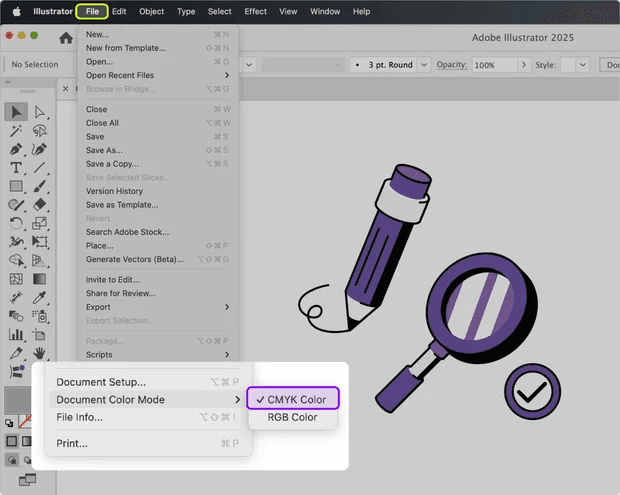 How to change the Illustrator color mode (CMYK to RGB, RGB to CMYK)
2️⃣Have all the fonts you used been outlined?
If the font isn’t installed on the PC or becomes corrupted, the text may be missing in print and appear in a default font instead. It’s safest to outline all text.(☑️Illustrator 기준 : 선택한 폰트 > 마우스 우클릭 > Create Outlines 선택 혹은 단축키 Ctrl + Shift + o)
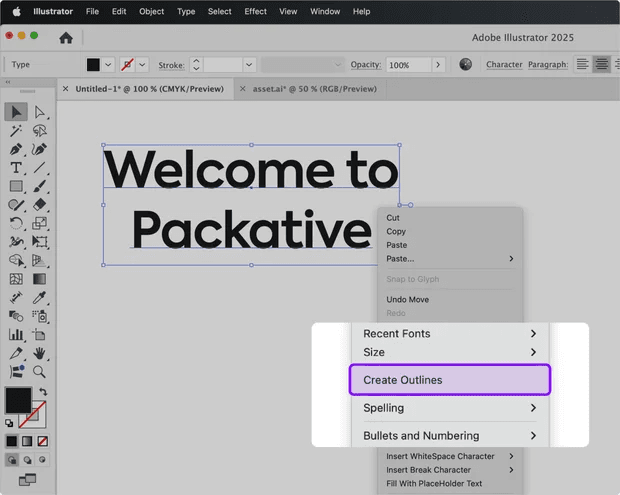 How to outline text in Illustrator, how to convert text to outlines
3️⃣Have the inserted images been embedded?
If you only link to image files instead of including them directly in the design file, images may disappear when the file is moved or printed. Be sure to embed the images, and set the resolution to at least 300ppi.
(☑️Illustrator 기준 : 이미지 선택 후 상단 메뉴 Window > Document Info 클릭 > 패널 우측 상단 메뉴에서 Embedded Images 선택 > 해상도 PPI 확인)
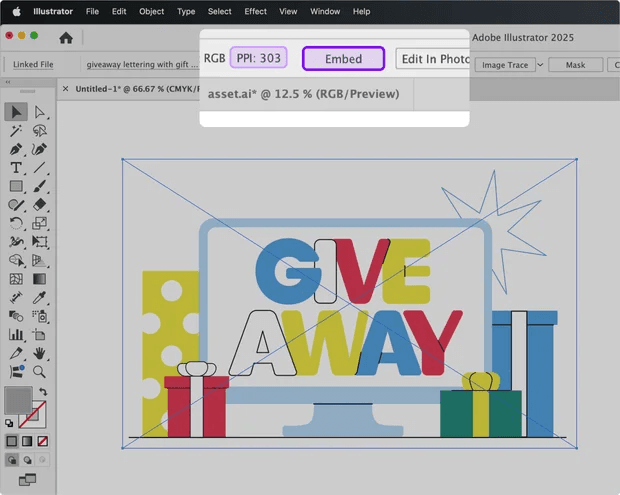 How to embed images in Illustrator and check resolution ppi
4️⃣Have you allowed enough bleed?
Bleed refers to the extra area beyond the actual trim line where backgrounds, images, or colors are extended to account for possible cutting errors during printing and trimming.
Since packaging includes a die-cutting process, the design needs to include margins extending 2–3mm beyond the final dieline edge. Without bleed, white edges may show after trimming.
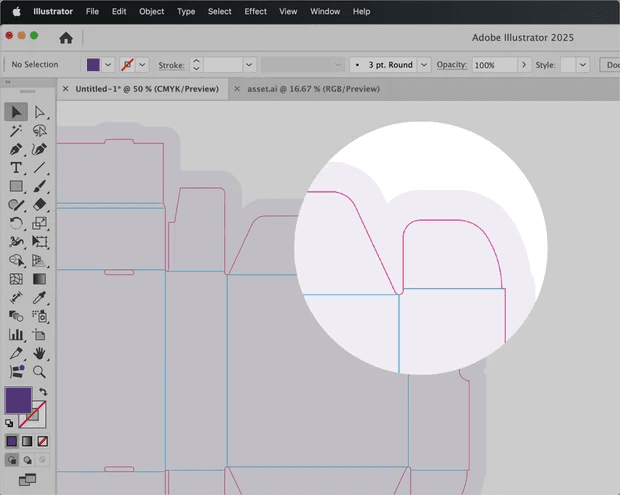 Package design bleed and filling the print-safe area
5️⃣Have transparency and shadow effects been rasterized?
Using opacity, blending modes such as Multiply, or drop shadow effects can cause printing defects. If you used these effects, be sure to rasterize them, which converts vector data and effects into pixel images. (☑️Illustrator 기준 : 투명도나 그림자 효과가 있는 레이어 선택 후, 상단 Object > Rasterize 클릭 후 옵션 값 선택)
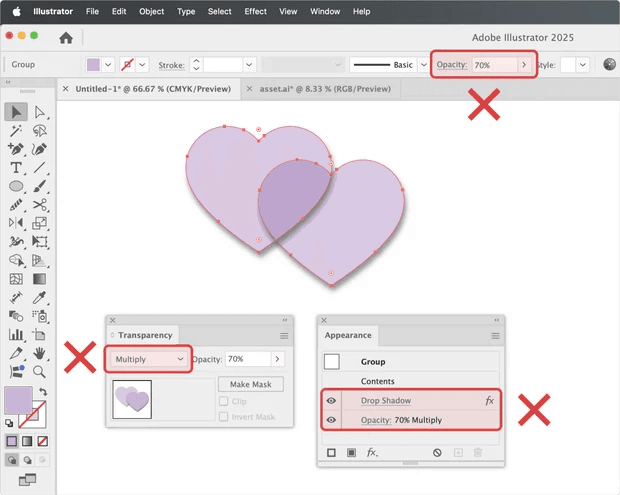 How to rasterize in Illustrator
6️⃣When saving as PDF, did you check the 'editable' option?
If you save the final file as a PDF, enable the PDF/X or editable option. This allows the printer or production vendor to open the file more reliably. (☑️Illustrator 기준 : 파일 저장 후 Save Adobe PDF > General > Options > Preserve illustrator Editing Capabilities 체크)
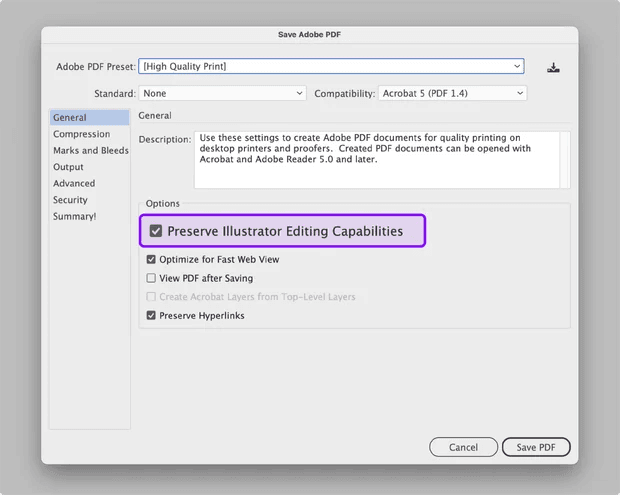 Check the PDF editable option
If you follow just this checklist well, production time will be shorter and you’ll be able to move forward smoothly without printing errors. Once your design file is ready, compare real-time quotes based on package type and options on the Packative website and find the production method that fits you best.🔎
🔽Go directly to the Packative website🔽
Custom package 3D design & production, fast and easy! | Packative
🔽Request a quote for custom box production🔽
Real-time quote request for custom box production | Packative