Tips for Using the Packative Editor: When Working with Transparent Images
The Packative Editor makes every effort to keep things convenient for users, but sometimes there are issues that can’t be solved within the editor alone. For example, transparent images that only have outlines and no filled interior can cause problems when other graphics behind them show through. In this...
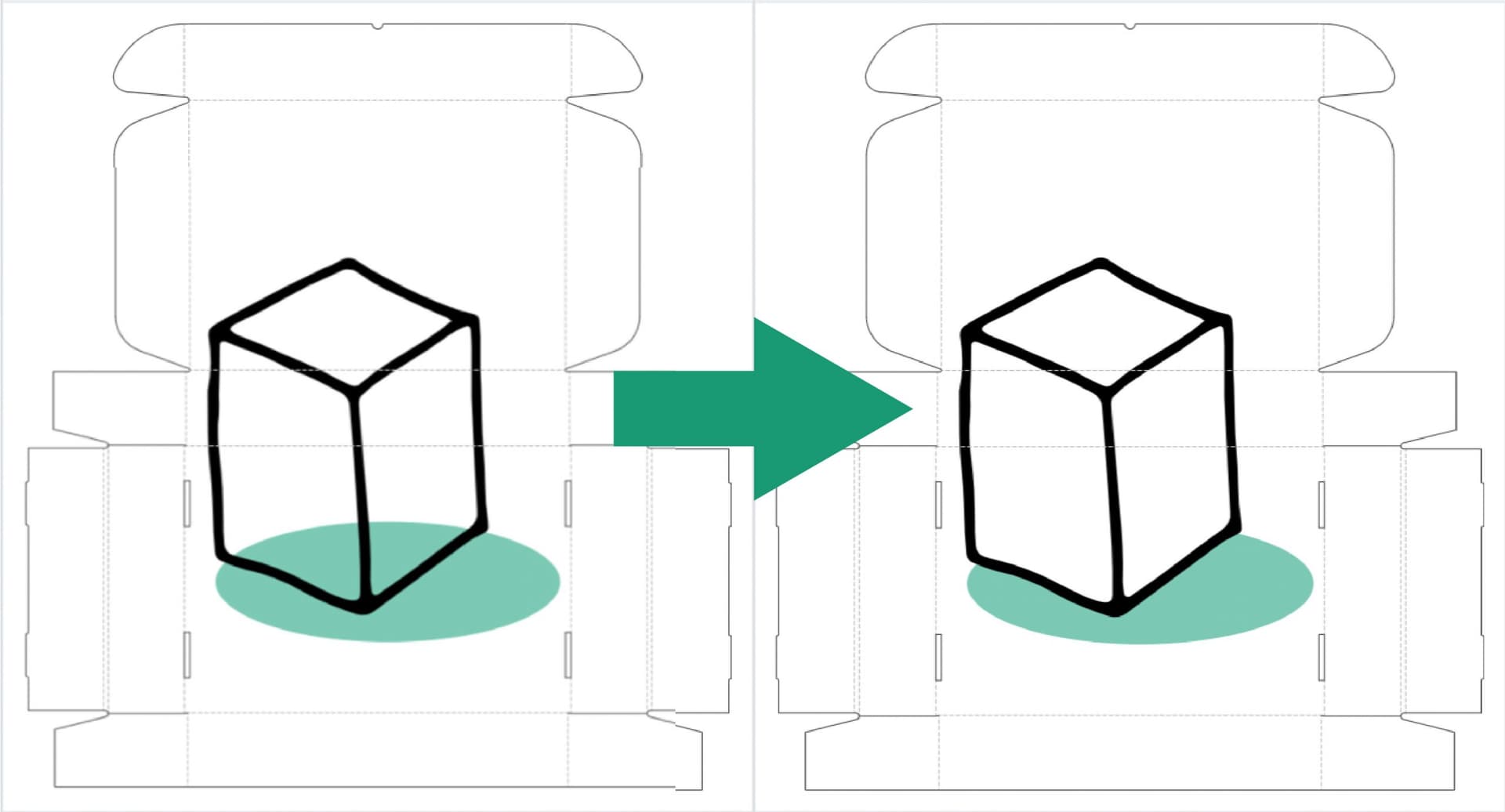
Packative Editor makes every effort to keep things convenient for users, but sometimes there are issues that can’t be solved within the editor alone. For example, transparent images that only have outlines and no filled interior can cause problems when other graphics behind them show through.
 Just like this!
When that happens, don’t panic — there’s a simple way to solve it.
- Let’s use the polygon drawing tool in the top toolbar!
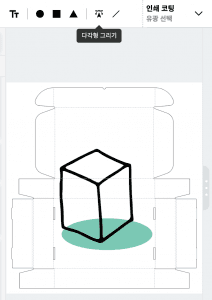
- Use the polygon tool to select the overlapping area of color.
- With just a few clicks, you can create a polygon that covers the overlapping section!
- Now change the polygon’s color.
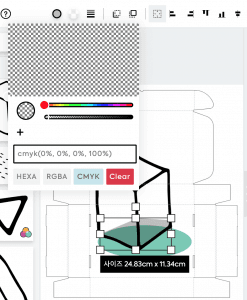
- Make the line completely transparent,
- and fill the shape with the same color as the background.
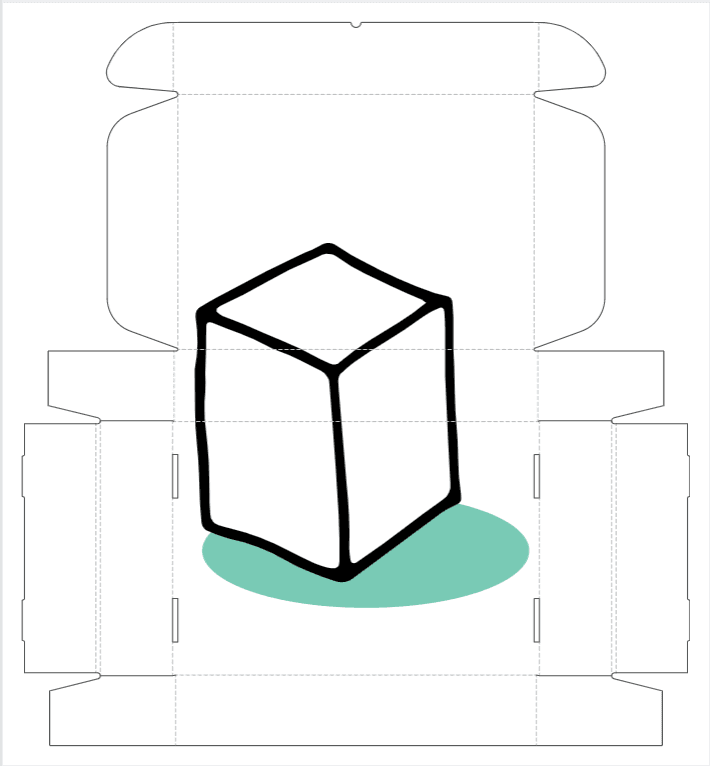
- Send the polygon to the back, and you’re done!
At Packative, we do our best to provide an easy and convenient package design experience for you! If you run into any difficulties, don’t forget to contact Packative 😉
Try using the Packative Editor right now!
Wishing you a great day 😄